在網址列輸入 about:config接著在搜尋的地方輸入 browser.newtab.url ,
在該項目按右鍵 → 修改 → 輸入想要預設的網址。
2015年3月5日 星期四

ReAPK
apktool
下載apktool-1.0.0.tar.bz2 和apktool-install-windows-2.1_r01-1.zip 解解縮apktool-1.0.0.tar.bz2 和apktool-install-windows-2.1_r01-1.zip 到同一文件夾下 輸入CMD命令,用cd命令切換到剛剛解縮apktool-install-windows所在的文件夾,輸入apktool d geek.apk(反編譯)
apktool b geek(編譯)
dex2jar
透過 dex2jar 把 classes.dex 還原為 jar 檔
jd-gui
jd-gui ,然后打开后,直接把生成的classes_dex2jar.jar拖入jd-gui中即可
下載apktool-1.0.0.tar.bz2 和apktool-install-windows-2.1_r01-1.zip 解解縮apktool-1.0.0.tar.bz2 和apktool-install-windows-2.1_r01-1.zip 到同一文件夾下 輸入CMD命令,用cd命令切換到剛剛解縮apktool-install-windows所在的文件夾,輸入apktool d geek.apk(反編譯)
apktool b geek(編譯)
dex2jar
透過 dex2jar 把 classes.dex 還原為 jar 檔
jd-gui
jd-gui ,然后打开后,直接把生成的classes_dex2jar.jar拖入jd-gui中即可
Ubuntu 12.04 安裝完登入後黑屏
系统版本
ubuntu12.04.2
現象
安裝完成後,登入後螢幕呈現黑屏
原因
圖形介面城市損壞,可能是更新內核或者安裝套件的時候,把與xorg相關的文件給清除了
解决方案。
系統黑屏後 Ctrl+ALT+F4 進入命令模式
登入使用者後
sudo apt-get update
sudo apt-get install xserver-xorg-lts-quantal
sudo dpkg-reconfigure xserver-xorg-lts-quantal
sudo reboot
來源 : http://www.2cto.com/os/201305/213737.html
啟用系統管理員 Administrator 帳戶
virtualbox 新增共享資料夾
-$ sudo mkdir /home/user(自行取的名稱)/桌面/要存放的資歷夾名稱
-$ suod mount.vboxsf 掛載的資歷夾 /home/user(自行取的名稱)/桌面/要存放的資歷夾名稱
如果 suod mount.vboxsf 顯示 not found
-$ mount.vboxsf
程式 'mount.vboxsf' 目前尚未安裝。 您可以由輸入以下內容安裝:
sudo apt-get install virtualbox-guest-utils
$ sudo apt-get install virtualbox-guest-utils
正在讀取套件清單... 完成
正在重建相依關係
正在讀取狀態資料... 完成
以下套件為自動安裝,並且已經無用:
anthy anthy-common libanthy0
Use 'apt-get autoremove' to remove them.
下列的額外套件將被安裝:
virtualbox-guest-dkms virtualbox-guest-x11
下列【新】套件將會被安裝:
virtualbox-guest-dkms virtualbox-guest-utils virtualbox-guest-x11
升級 0 個,新安裝 3 個,移除 0 個,有 6 個未被升級。
需要下載 1,671 kB 的套件檔。
此操作完成之後,會多佔用 11.1 MB 的磁碟空間。
是否繼續進行 [Y/n]?y
下載:1 http://tw.archive.ubuntu.com/ubuntu/ saucy/multiverse virtualbox-guest-utils i386 4.2.16-dfsg-3 [336 kB]
下載:2 http://tw.archive.ubuntu.com/ubuntu/ saucy/multiverse virtualbox-guest-dkms all 4.2.16-dfsg-3 [434 kB]
下載:3 http://tw.archive.ubuntu.com/ubuntu/ saucy/multiverse virtualbox-guest-x11 i386 4.2.16-dfsg-3 [901 kB]
取得 1,671 kB 用了 6秒 (243 kB/s)
選取了原先未選的套件 virtualbox-guest-utils。
(讀取資料庫 ... 目前共安裝了 174181 個檔案和目錄。)
解開 virtualbox-guest-utils(從 .../virtualbox-guest-utils_4.2.16-dfsg-3_i386.deb)...
選取了原先未選的套件 virtualbox-guest-dkms。
解開 virtualbox-guest-dkms(從 .../virtualbox-guest-dkms_4.2.16-dfsg-3_all.deb)...
選取了原先未選的套件 virtualbox-guest-x11。
解開 virtualbox-guest-x11(從 .../virtualbox-guest-x11_4.2.16-dfsg-3_i386.deb)...
執行 man-db 的觸發程式 ...
執行 ureadahead 的觸發程式 ...
ureadahead will be reprofiled on next reboot
設定 virtualbox-guest-utils (4.2.16-dfsg-3) ...
執行 ureadahead 的觸發程式 ...
設定 virtualbox-guest-dkms (4.2.16-dfsg-3) ...
Loading new virtualbox-guest-4.2.16 DKMS files...
First Installation: checking all kernels...
Building only for 3.11.0-18-generic
Building initial module for 3.11.0-18-generic
Done.
vboxguest:
Running module version sanity check.
Error! Module version 4.2.16_Ubuntu for vboxguest.ko
is not newer than what is already found in kernel 3.11.0-18-generic (4.3.10).
You may override by specifying --force.
vboxsf.ko:
Running module version sanity check.
Error! Module version 4.2.16_Ubuntu for vboxsf.ko
is not newer than what is already found in kernel 3.11.0-18-generic (4.3.10).
You may override by specifying --force.
vboxvideo.ko:
Running module version sanity check.
Error! Module version 4.2.16_Ubuntu for vboxvideo.ko
is not newer than what is already found in kernel 3.11.0-18-generic (4.3.10).
You may override by specifying --force.
depmod.....
DKMS: install completed.
設定 virtualbox-guest-x11 (4.2.16-dfsg-3) ...
設定檔 `/etc/X11/Xsession.d/98vboxadd-xclient'
==> 系統中的這個檔案是由您建立或者是由 script 建立的。
==> 套件維護者所提供的套件中也包含了該檔案。
您要如何處理?選項如下:
Y 或 I :安裝套件維護者所提供的版本
N 或 O :保留您原本安裝的版本
D :顯示兩者有何不同
Z :開啟命令列,以研判問題
預設的動作是保留您目前使用的版本。
*** 98vboxadd-xclient (Y/I/N/O/D/Z) [預設=N] ? D
設定檔 `/etc/X11/Xsession.d/98vboxadd-xclient'
==> 系統中的這個檔案是由您建立或者是由 script 建立的。
==> 套件維護者所提供的套件中也包含了該檔案。
您要如何處理?選項如下:
Y 或 I :安裝套件維護者所提供的版本
N 或 O :保留您原本安裝的版本
D :顯示兩者有何不同
Z :開啟命令列,以研判問題
預設的動作是保留您目前使用的版本。
*** 98vboxadd-xclient (Y/I/N/O/D/Z) [預設=N] ? Y
安裝新版的設定檔 /etc/X11/Xsession.d/98vboxadd-xclient ...
執行 ureadahead 的觸發程式 ...
執行 libc-bin 的觸發程式 ...
安裝完成 正常執行
-$ suod mount.vboxsf 掛載的資歷夾 /home/user(自行取的名稱)/桌面/要存放的資歷夾名稱
如果 suod mount.vboxsf 顯示 not found
-$ mount.vboxsf
程式 'mount.vboxsf' 目前尚未安裝。 您可以由輸入以下內容安裝:
sudo apt-get install virtualbox-guest-utils
$ sudo apt-get install virtualbox-guest-utils
正在讀取套件清單... 完成
正在重建相依關係
正在讀取狀態資料... 完成
以下套件為自動安裝,並且已經無用:
anthy anthy-common libanthy0
Use 'apt-get autoremove' to remove them.
下列的額外套件將被安裝:
virtualbox-guest-dkms virtualbox-guest-x11
下列【新】套件將會被安裝:
virtualbox-guest-dkms virtualbox-guest-utils virtualbox-guest-x11
升級 0 個,新安裝 3 個,移除 0 個,有 6 個未被升級。
需要下載 1,671 kB 的套件檔。
此操作完成之後,會多佔用 11.1 MB 的磁碟空間。
是否繼續進行 [Y/n]?y
下載:1 http://tw.archive.ubuntu.com/ubuntu/ saucy/multiverse virtualbox-guest-utils i386 4.2.16-dfsg-3 [336 kB]
下載:2 http://tw.archive.ubuntu.com/ubuntu/ saucy/multiverse virtualbox-guest-dkms all 4.2.16-dfsg-3 [434 kB]
下載:3 http://tw.archive.ubuntu.com/ubuntu/ saucy/multiverse virtualbox-guest-x11 i386 4.2.16-dfsg-3 [901 kB]
取得 1,671 kB 用了 6秒 (243 kB/s)
選取了原先未選的套件 virtualbox-guest-utils。
(讀取資料庫 ... 目前共安裝了 174181 個檔案和目錄。)
解開 virtualbox-guest-utils(從 .../virtualbox-guest-utils_4.2.16-dfsg-3_i386.deb)...
選取了原先未選的套件 virtualbox-guest-dkms。
解開 virtualbox-guest-dkms(從 .../virtualbox-guest-dkms_4.2.16-dfsg-3_all.deb)...
選取了原先未選的套件 virtualbox-guest-x11。
解開 virtualbox-guest-x11(從 .../virtualbox-guest-x11_4.2.16-dfsg-3_i386.deb)...
執行 man-db 的觸發程式 ...
執行 ureadahead 的觸發程式 ...
ureadahead will be reprofiled on next reboot
設定 virtualbox-guest-utils (4.2.16-dfsg-3) ...
執行 ureadahead 的觸發程式 ...
設定 virtualbox-guest-dkms (4.2.16-dfsg-3) ...
Loading new virtualbox-guest-4.2.16 DKMS files...
First Installation: checking all kernels...
Building only for 3.11.0-18-generic
Building initial module for 3.11.0-18-generic
Done.
vboxguest:
Running module version sanity check.
Error! Module version 4.2.16_Ubuntu for vboxguest.ko
is not newer than what is already found in kernel 3.11.0-18-generic (4.3.10).
You may override by specifying --force.
vboxsf.ko:
Running module version sanity check.
Error! Module version 4.2.16_Ubuntu for vboxsf.ko
is not newer than what is already found in kernel 3.11.0-18-generic (4.3.10).
You may override by specifying --force.
vboxvideo.ko:
Running module version sanity check.
Error! Module version 4.2.16_Ubuntu for vboxvideo.ko
is not newer than what is already found in kernel 3.11.0-18-generic (4.3.10).
You may override by specifying --force.
depmod.....
DKMS: install completed.
設定 virtualbox-guest-x11 (4.2.16-dfsg-3) ...
設定檔 `/etc/X11/Xsession.d/98vboxadd-xclient'
==> 系統中的這個檔案是由您建立或者是由 script 建立的。
==> 套件維護者所提供的套件中也包含了該檔案。
您要如何處理?選項如下:
Y 或 I :安裝套件維護者所提供的版本
N 或 O :保留您原本安裝的版本
D :顯示兩者有何不同
Z :開啟命令列,以研判問題
預設的動作是保留您目前使用的版本。
*** 98vboxadd-xclient (Y/I/N/O/D/Z) [預設=N] ? D
設定檔 `/etc/X11/Xsession.d/98vboxadd-xclient'
==> 系統中的這個檔案是由您建立或者是由 script 建立的。
==> 套件維護者所提供的套件中也包含了該檔案。
您要如何處理?選項如下:
Y 或 I :安裝套件維護者所提供的版本
N 或 O :保留您原本安裝的版本
D :顯示兩者有何不同
Z :開啟命令列,以研判問題
預設的動作是保留您目前使用的版本。
*** 98vboxadd-xclient (Y/I/N/O/D/Z) [預設=N] ? Y
安裝新版的設定檔 /etc/X11/Xsession.d/98vboxadd-xclient ...
執行 ureadahead 的觸發程式 ...
執行 libc-bin 的觸發程式 ...
安裝完成 正常執行
VirtualBox設定網路
設定網路
-
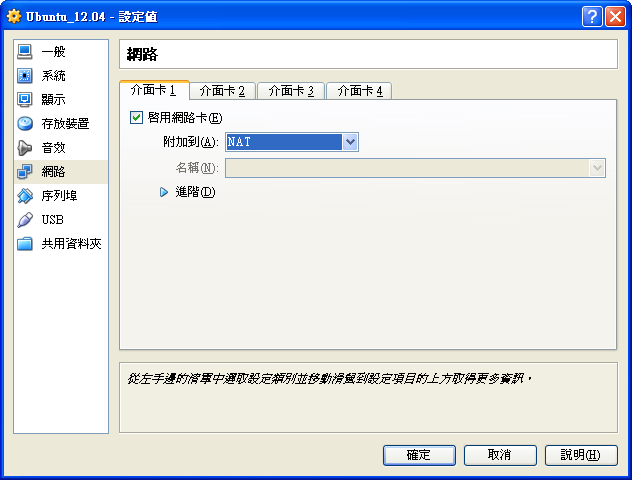
- NAT 模式 (Network Address Translation mode)
- VirtualBox 預設的網路模式是 NAT 模式,可以想像成虛擬機器將透過一個 router 連線到 internet 網路,這個 router 就是 VirtualBox程式本身。這是最簡單的網路模式,host OS (Windows XP) 跟 guest OS (Ubuntu) 都不需要做任何設定,guest OS 即可以上網瀏覽,收發email.
- 如果沒有什麼特殊需求的話,網路設定到此就可以結束了。Ubuntu的網卡 eth0 預設會開啟DHCP,所以Ubuntu 安裝完成後,登入 Ubuntu,eth0 會透過DHCP取得IP,網路就可以使用了。

如果你安裝的Ubuntu是打算做為LAN上面的某種伺服器的話,可以考慮『橋接介面卡』模式。虛擬機器的IP跟主機屬於同一個網路domain,對於LAN上面的電腦(包括安裝虛擬機器的主機本身),直接跟虛擬機器的IP溝通。
在設定上,將Ubuntu的網卡附加到一張host OS上面的實體網路卡,如下圖所示。

- 內部網路模式 (Internal networking mode)
- 這是一種特殊的模式。虛擬機器的網路只能在VirtualBox選定的虛擬機器之間連接,無法連到主機,也沒法連到外部網路。設定這種模式的用意是不希望虛擬機器上面的任何網路設定影響到主機或者網路上面的其他電腦。
這也是一種特殊的模式。主機可以跟一群虛擬機器形成一個網路,主機跟虛擬機器之間靠的不是實體網路卡,而是在主機上面產生的虛擬網路卡(virtual network interface)。
來源:http://dragonspring.pixnet.net/blog/post/37297494-virtualbox-4.2-%E4%B8%8A%E9%9D%A2%E5%AE%89%E8%A3%9Dubuntu-12
圖片合成
首先,先進入官網http://apps.pixlr.com/editor/
按"open image from computer"上傳圖片

右下角會出現圖層,圖片旁邊有個小鎖頭的符號,在上面連續兩下解鎖,以便修改圖片

變成打勾的狀態後,就可以開始編輯了!

選擇魔術棒,再不要的地方點一下,把不要的圈選起來
如果一次要圈選多的地方,請利用"shift鍵" 加滑鼠點擊

若圈選的地方太大,圈到你要的圖片,可以選擇上方的"Tolerance"調整數值,調整小一點

若用不習慣魔術棒,你也可以用方塊圈選的方式,把你不要的地方圈起來,但這個動作會比較慢

按"Clear"清除

完成後,按"File"===>"Save"存檔

存檔類型請存"PNG" 檔,才有透明背景,若存"JPG檔背景會變黑

完成囉!~~~~
來源 : http://mandymami.pixnet.net/blog/post/30841707-%E2%98%85%E6%95%99%E4%BD%A0%E5%A6%82%E4%BD%95%E5%8E%BB%E9%99%A4%E5%9C%96%E7%89%87%E8%83%8C%E6%99%AF%E3%80%81%E8%AE%93%E8%83%8C%E6%99%AF%E9%80%8F%E6%98%8Epixlr%28%E5%8E%BB
按"open image from computer"上傳圖片
右下角會出現圖層,圖片旁邊有個小鎖頭的符號,在上面連續兩下解鎖,以便修改圖片
變成打勾的狀態後,就可以開始編輯了!
選擇魔術棒,再不要的地方點一下,把不要的圈選起來
如果一次要圈選多的地方,請利用"shift鍵" 加滑鼠點擊
若圈選的地方太大,圈到你要的圖片,可以選擇上方的"Tolerance"調整數值,調整小一點
若用不習慣魔術棒,你也可以用方塊圈選的方式,把你不要的地方圈起來,但這個動作會比較慢
按"Clear"清除
完成後,按"File"===>"Save"存檔
存檔類型請存"PNG" 檔,才有透明背景,若存"JPG檔背景會變黑
完成囉!~~~~
來源 : http://mandymami.pixnet.net/blog/post/30841707-%E2%98%85%E6%95%99%E4%BD%A0%E5%A6%82%E4%BD%95%E5%8E%BB%E9%99%A4%E5%9C%96%E7%89%87%E8%83%8C%E6%99%AF%E3%80%81%E8%AE%93%E8%83%8C%E6%99%AF%E9%80%8F%E6%98%8Epixlr%28%E5%8E%BB
Linux切換root
指令打$ sudo su
輸入密碼就可以切換
輸入密碼就可以切換
設定 root 密碼
-
- Ubuntu 安裝過程中,並不需要設定 root password,如果有需要的話可以用 sudo passwd root 命令加以設定 。
- 在平常使用時,只要用 sudo 來執行 root 指令即可。例如以下範例利用 apt-get 安裝 sshd: sudo apt-get install sshd
vmware tools安裝
首先,在vmware的上方工具列中選擇安裝vmware tools
如果是vmware player,就是在player裡manage中。
(因為之前已經裝好了,所以變成reinstall,未裝的話會是install)

當按下reinstall或install時
系統會幫你掛上vmware-tool的iso
然後就跳出光碟裡的檔案

這時候就對vmware-tool這個壓縮檔按右鍵,解壓縮

解壓縮到home下

然後開啟 終端機

在終端機裡輸入


來源 : http://pighead2002.pixnet.net/blog/post/57814934-ubuntu-12.04-%E5%AE%89%E8%A3%9D-vmware-tools
如果是vmware player,就是在player裡manage中。
(因為之前已經裝好了,所以變成reinstall,未裝的話會是install)
當按下reinstall或install時
系統會幫你掛上vmware-tool的iso
然後就跳出光碟裡的檔案
這時候就對vmware-tool這個壓縮檔按右鍵,解壓縮
解壓縮到home下
然後開啟 終端機
在終端機裡輸入
sudo ./vmware-tools-distrib/vmware-install.pl
接下來呢,就一直按enter就好了....
安裝完,就會出現這樣的畫面
來源 : http://pighead2002.pixnet.net/blog/post/57814934-ubuntu-12.04-%E5%AE%89%E8%A3%9D-vmware-tools
NS3安裝
一. NS3安装预先设置Ubuntu环境如下(Prerequisites for Ubuntu12.04)
------------------------------------------------------------
二、NS3下载
到NS3網站下載NS3壓縮檔,並解壓縮到家目錄底下
------------------------------------------------------------
三、编译NS3
进入ns-allinone-3.17目录,在终端shell中执行
一轮长时间的等待,
最终执行完后看到 ".Waf: Leaving directory `/path/to/workspace/ns-allinone-3.17/ns-3.17/build'
'build' finished successfully (6m25.032s)
Modules built:
antenna aodv applications
bridge buildings config-store
core csma csma-layout
dsdv dsr emu
energy fd-net-device flow-monitor
internet lte mesh
mobility mpi netanim (no Python)
network nix-vector-routing olsr
point-to-point point-to-point-layout propagation
spectrum stats tap-bridge
test (no Python) tools topology-read
uan virtual-net-device wifi
wimax visualizer
Modules not built (see ns-3 tutorial for explanation):
brite click openflow
Leaving directory `./ns-3.17`."
使用waf构建(Building with Waf)
进入ns-3.17文件目录:
最终看到:Checking for program g++ : ok /usr/bin/g++
Checking for program cpp : ok /usr/bin/cpp
Checking for program ar : ok /usr/bin/ar
Checking for program ranlib : ok /usr/bin/ranlib
Checking for g++ : ok
Checking for program pkg-config : ok /usr/bin/pkg-config
Checking for -Wno-error=deprecated-declarations support : yes
Checking for -Wl,--soname=foo support : yes
Checking for header stdlib.h : ok
Checking for header signal.h : ok
Checking for header pthread.h : ok
Checking for high precision time implementation : 128-bit integer
Checking for header stdint.h : ok
Checking for header inttypes.h : ok
Checking for header sys/inttypes.h : not found
Checking for library rt : ok
Checking for header netpacket/packet.h : ok
Checking for pkg-config flags for GSL : ok
Checking for header linux/if_tun.h : ok
Checking for pkg-config flags for GTK_CONFIG_STORE : ok
Checking for pkg-config flags for LIBXML2 : ok
Checking for library sqlite3 : ok
Checking for NSC location : ok ../nsc (guessed)
Checking for library dl : ok
Checking for NSC supported architecture x86_64 : ok
Checking for program python : ok /usr/bin/python
Checking for Python version >= 2.3 : ok 2.5.2
Checking for library python2.5 : ok
Checking for program python2.5-config : ok /usr/bin/python2.5-config
Checking for header Python.h : ok
Checking for -fvisibility=hidden support : yes
Checking for pybindgen location : ok ../pybindgen (guessed)
Checking for Python module pybindgen : ok
Checking for pybindgen version : ok 0.10.0.640
Checking for Python module pygccxml : ok
Checking for pygccxml version : ok 0.9.5
Checking for program gccxml : ok /usr/local/bin/gccxml
Checking for gccxml version : ok 0.9.0
Checking for program sudo : ok /usr/bin/sudo
Checking for program hg : ok /usr/bin/hg
Checking for program valgrind : ok /usr/bin/valgrind
---- Summary of optional NS-3 features:
Python Bindings : enabled
Python API Scanning Support : not enabled (Missing 'pygccxml' Python module)
BRITE Integration : not enabled (BRITE not enabled (see option --with-brite))
NS-3 Click Integration : not enabled (nsclick not enabled (see option --with-nsclick))
GtkConfigStore : enabled
XmlIo : enabled
Threading Primitives : enabled
Real Time Simulator : enabled
Emulated Net Device : enabled
File descriptor NetDevice : enabled
Tap FdNetDevice : enabled
Emulation FdNetDevice : enabled
PlanetLab FdNetDevice : not enabled (PlanetLab operating system not detected (see option --force-planetlab))
Network Simulation Cradle : not enabled (NSC not found (see option --with-nsc))
MPI Support : not enabled (option --enable-mpi not selected)
NS-3 OpenFlow Integration : not enabled (OpenFlow not enabled (see option --with-openflow))
SQlite stats data output : enabled
Tap Bridge : enabled
PyViz visualizer : enabled
Use sudo to set suid bit : enabled
Build tests : enabled
Build examples : enabled
GNU Scientific Library (GSL) : enabled
'configure' finished successfully (4.768s)
PS:此次出现很多“Not enable“ 暂时还不清楚怎么使其”enable“
最终看到"...finished successfully (s)"
又将是一轮长时间的等待
Enable something
Help
四、测试NS3
出现Waf: Leaving directory `/home/rogerking/ns-allinone-3.17/ns-3.17/build'
'build' finished successfully (6m1.803s)
Modules built:
antenna aodv applications
bridge buildings config-store
core csma csma-layout
dsdv dsr emu
energy fd-net-device flow-monitor
internet lte mesh
mobility mpi netanim (no Python)
network nix-vector-routing olsr
point-to-point point-to-point-layout propagation
spectrum stats tap-bridge
test (no Python) tools topology-read
uan virtual-net-device visualizer
wifi wimax
Modules not built (see ns-3 tutorial for explanation):
brite click openflow
PASS: TestSuite attributes
PASS: TestSuite callback
PASS: TestSuite command-line
PASS: TestSuite config
PASS: TestSuite global-value
PASS: TestSuite int64x64
PASS: TestSuite object-name-service
PASS: TestSuite object
PASS: TestSuite ptr
PASS: TestSuite basic-random-number
PASS: TestSuite sample
PASS: TestSuite simulator
PASS: TestSuite time
PASS: TestSuite timer
PASS: TestSuite traced-callback
PASS: TestSuite type-traits
PASS: TestSuite watchdog
PASS: TestSuite threaded-simulator
PASS: TestSuite random-number-generators
...
PASS: TestSuite static-routing
PASS: TestSuite mobility
PASS: TestSuite ns3-wifi-interference
PASS: TestSuite ns3-wifi-msdu-aggregator
SKIP: TestSuite ns3-tcp-cwnd
SKIP: TestSuite ns3-tcp-interoperability
PASS: TestSuite ns3-tcp-loss
PASS: TestSuite ns3-tcp-no-delay
PASS: TestSuite ns3-tcp-socket
PASS: TestSuite ns3-tcp-state
SKIP: TestSuite nsc-tcp-loss
153 of 156 tests passed (153 passed, 3 skipped, 0 failed, 0 crashed, 0 valgrind errors)
说明安装成功,这个信息非常重要
出现"Hello Simulator"信息,恭喜你现在正式成为ns3的用户(若没有出现"Hello Simulator",请确定waf构建是否使用-d debug)
來源 : http://blog.csdn.net/roger__king/article/details/9209501
- C++和python安装,必装
sudo apt-get install gcc g++ python
sudo apt-get install gcc g++ python python-dev
- NS3代码维护使用的源码版本控制管理系统
sudo apt-get install mercurial
- 运行python绑定ns-3-dev需要bazaar这个组件
sudo apt-get install bzr
- 调试工具
sudo apt-get install gdb valgrind
- 支持更多精确WIFI模块的GNU Scientific Library (GSL)
sudo apt-get install gsl-bin libgsl0-dev libgsl0ldbl
- 仿真必需的词法分析器和语法分析生成器,必装
sudo apt-get install flex bison libfl-dev
- 一些Network Simulation Cradle (nsc) stacks需要gcc-4.4
sudo apt-get install g++-4.4 gcc-4.4
- 读取pcap的packet traces,即包嗅探器
sudo apt-get install tcpdump
- 支持统计特性的数据库软件
sudo apt-get install sqlite sqlite3 libsqlite3-dev
- xml的配置存储软件(requires libxml2 >= version 2.7)
sudo apt-get install libxml2 libxml2-dev
- 基于GTK的配置系统
sudo apt-get install libgtk2.0-0 libgtk2.0-dev
- 在虚拟机and ns-3上测试
sudo apt-get install vtun lxc
- 支持utils/check-style.py 代码风格检查程序
sudo apt-get install uncrustify
- 文档生成器,从源代码中生成说明文档
 sudo apt-get install doxygen graphviz imagemagick
 sudo apt-get install texlive texlive-extra-utils texlive-latex-extra
- The ns-3 manual and tutorial are written in reStructuredText for Sphinx (doc/tutorial, doc/manual, doc/models), and figures typically in dia:
sudo apt-get install python-sphinx dia
Note: Sphinx version >= 1.12 required for ns-3.15.
To check your version, type "sphinx-build". To fetch this package alone,
outside of the Ubuntu package system, try "sudo easy_install -U
Sphinx".
- Gustavo's ns-3-pyviz的可视化软件
sudo apt-get install python-pygraphviz python-kiwi python-pygoocanvas libgoocanvas-dev
- 支持openflow 模块(requires some boost libraries)
sudo apt-get install libboost-signals-dev libboost-filesystem-dev
- 支持基于 MPI的分布式仿真
sudo apt-get install openmpi*
------------------------------------------------------------
二、NS3下载
到NS3網站下載NS3壓縮檔,並解壓縮到家目錄底下
------------------------------------------------------------
三、编译NS3
进入ns-allinone-3.17目录,在终端shell中执行
./build.py --enable-examples --enable-tests
一轮长时间的等待,
最终执行完后看到 ".Waf: Leaving directory `/path/to/workspace/ns-allinone-3.17/ns-3.17/build'
'build' finished successfully (6m25.032s)
Modules built:
antenna aodv applications
bridge buildings config-store
core csma csma-layout
dsdv dsr emu
energy fd-net-device flow-monitor
internet lte mesh
mobility mpi netanim (no Python)
network nix-vector-routing olsr
point-to-point point-to-point-layout propagation
spectrum stats tap-bridge
test (no Python) tools topology-read
uan virtual-net-device wifi
wimax visualizer
Modules not built (see ns-3 tutorial for explanation):
brite click openflow
Leaving directory `./ns-3.17`."
使用waf构建(Building with Waf)
进入ns-3.17文件目录:
 ./waf clean
./waf -d optimized --enable-examples --enable-tests configure
最终看到:Checking for program g++ : ok /usr/bin/g++
Checking for program cpp : ok /usr/bin/cpp
Checking for program ar : ok /usr/bin/ar
Checking for program ranlib : ok /usr/bin/ranlib
Checking for g++ : ok
Checking for program pkg-config : ok /usr/bin/pkg-config
Checking for -Wno-error=deprecated-declarations support : yes
Checking for -Wl,--soname=foo support : yes
Checking for header stdlib.h : ok
Checking for header signal.h : ok
Checking for header pthread.h : ok
Checking for high precision time implementation : 128-bit integer
Checking for header stdint.h : ok
Checking for header inttypes.h : ok
Checking for header sys/inttypes.h : not found
Checking for library rt : ok
Checking for header netpacket/packet.h : ok
Checking for pkg-config flags for GSL : ok
Checking for header linux/if_tun.h : ok
Checking for pkg-config flags for GTK_CONFIG_STORE : ok
Checking for pkg-config flags for LIBXML2 : ok
Checking for library sqlite3 : ok
Checking for NSC location : ok ../nsc (guessed)
Checking for library dl : ok
Checking for NSC supported architecture x86_64 : ok
Checking for program python : ok /usr/bin/python
Checking for Python version >= 2.3 : ok 2.5.2
Checking for library python2.5 : ok
Checking for program python2.5-config : ok /usr/bin/python2.5-config
Checking for header Python.h : ok
Checking for -fvisibility=hidden support : yes
Checking for pybindgen location : ok ../pybindgen (guessed)
Checking for Python module pybindgen : ok
Checking for pybindgen version : ok 0.10.0.640
Checking for Python module pygccxml : ok
Checking for pygccxml version : ok 0.9.5
Checking for program gccxml : ok /usr/local/bin/gccxml
Checking for gccxml version : ok 0.9.0
Checking for program sudo : ok /usr/bin/sudo
Checking for program hg : ok /usr/bin/hg
Checking for program valgrind : ok /usr/bin/valgrind
---- Summary of optional NS-3 features:
Python Bindings : enabled
Python API Scanning Support : not enabled (Missing 'pygccxml' Python module)
BRITE Integration : not enabled (BRITE not enabled (see option --with-brite))
NS-3 Click Integration : not enabled (nsclick not enabled (see option --with-nsclick))
GtkConfigStore : enabled
XmlIo : enabled
Threading Primitives : enabled
Real Time Simulator : enabled
Emulated Net Device : enabled
File descriptor NetDevice : enabled
Tap FdNetDevice : enabled
Emulation FdNetDevice : enabled
PlanetLab FdNetDevice : not enabled (PlanetLab operating system not detected (see option --force-planetlab))
Network Simulation Cradle : not enabled (NSC not found (see option --with-nsc))
MPI Support : not enabled (option --enable-mpi not selected)
NS-3 OpenFlow Integration : not enabled (OpenFlow not enabled (see option --with-openflow))
SQlite stats data output : enabled
Tap Bridge : enabled
PyViz visualizer : enabled
Use sudo to set suid bit : enabled
Build tests : enabled
Build examples : enabled
GNU Scientific Library (GSL) : enabled
'configure' finished successfully (4.768s)
PS:此次出现很多“Not enable“ 暂时还不清楚怎么使其”enable“
./waf clean
./waf -d debug --enable-examples --enable-tests configure
最终看到"...finished successfully (s)"
./waf
又将是一轮长时间的等待
Enable something
./waf configure -d debug --enable-sudo --enable-examples --enable-tests
Help
./waf --help
四、测试NS3
./test.py -c core
出现Waf: Leaving directory `/home/rogerking/ns-allinone-3.17/ns-3.17/build'
'build' finished successfully (6m1.803s)
Modules built:
antenna aodv applications
bridge buildings config-store
core csma csma-layout
dsdv dsr emu
energy fd-net-device flow-monitor
internet lte mesh
mobility mpi netanim (no Python)
network nix-vector-routing olsr
point-to-point point-to-point-layout propagation
spectrum stats tap-bridge
test (no Python) tools topology-read
uan virtual-net-device visualizer
wifi wimax
Modules not built (see ns-3 tutorial for explanation):
brite click openflow
PASS: TestSuite attributes
PASS: TestSuite callback
PASS: TestSuite command-line
PASS: TestSuite config
PASS: TestSuite global-value
PASS: TestSuite int64x64
PASS: TestSuite object-name-service
PASS: TestSuite object
PASS: TestSuite ptr
PASS: TestSuite basic-random-number
PASS: TestSuite sample
PASS: TestSuite simulator
PASS: TestSuite time
PASS: TestSuite timer
PASS: TestSuite traced-callback
PASS: TestSuite type-traits
PASS: TestSuite watchdog
PASS: TestSuite threaded-simulator
PASS: TestSuite random-number-generators
...
PASS: TestSuite static-routing
PASS: TestSuite mobility
PASS: TestSuite ns3-wifi-interference
PASS: TestSuite ns3-wifi-msdu-aggregator
SKIP: TestSuite ns3-tcp-cwnd
SKIP: TestSuite ns3-tcp-interoperability
PASS: TestSuite ns3-tcp-loss
PASS: TestSuite ns3-tcp-no-delay
PASS: TestSuite ns3-tcp-socket
PASS: TestSuite ns3-tcp-state
SKIP: TestSuite nsc-tcp-loss
153 of 156 tests passed (153 passed, 3 skipped, 0 failed, 0 crashed, 0 valgrind errors)
说明安装成功,这个信息非常重要
./waf --run hello-simulator
出现"Hello Simulator"信息,恭喜你现在正式成为ns3的用户(若没有出现"Hello Simulator",请确定waf构建是否使用-d debug)
來源 : http://blog.csdn.net/roger__king/article/details/9209501
訂閱:
文章 (Atom)